How to resolve below error

first check your country code & check Procedure select or not if not so put your pricing procedure in your country code.

How to resolve below error
Use Tcode: OBR2


Step 1st :
Run Tcode SE16N then put Table Name: KEKO Execute. see below screen shot


Material Cost Marked but not released so at the time of CK40N Error showing like below.

Once an asset has been deactivated, you can no longer post to the asset (with one exception: posting a reversal of the last retirement). you can also manually change the deactivation date in the asset master record.
Step-1) Use Tcode : AS02, Enter Asset code press Enter Key, then put manually deactivation date

Step 2) If show error like below
Message no. AA295
The deactivation date is in a closed fiscal year. Deactivation is only possible in a fiscal year after 2022.
e.i. : If Current FY: 2024-25 and deactivation date is 03-Mar-2020 then this error appears.

Use Tcode SE16N for asset code deactivation with debugging process.
Choose
Choose Inspection setup, Mass processing.
Select the materials you want to process. You can make the selection by using the plant, material, the material type and the material class.
Enter the required inspection type.
Edit the following indicators:
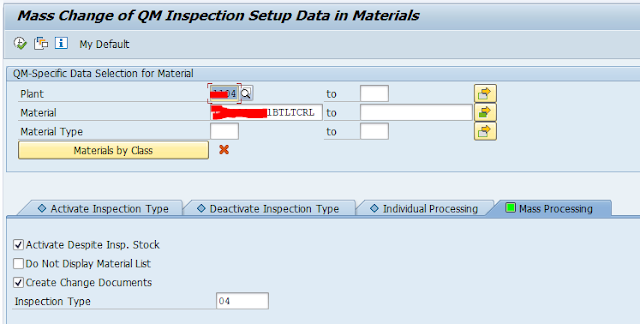
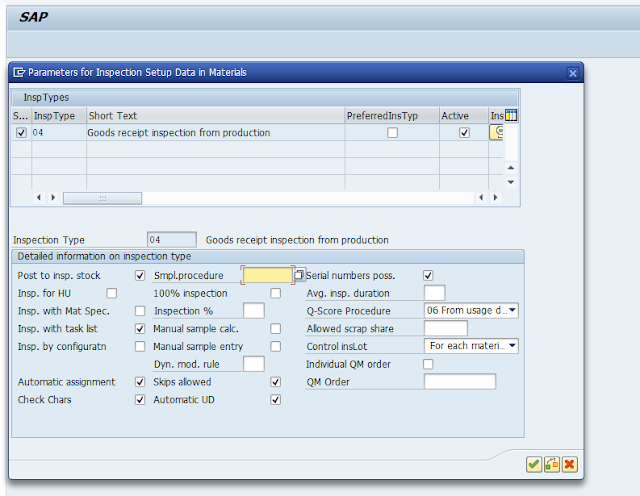
Check and Press Enter
Select All and Save


The screen for editing the inspection setup parameters in the material master is displayed.
Edit the indicators and field entries and choose Continue.
If you set the Do not display material list indicator, the data for the chosen inspection type is changed immediately for all selected materials.
If you did not set the Do not display material list indicator, select the materials from the list, for which you want to change the inspection type and choose Continue .
Save your data.
Whatever RCM tax we have to deduct, we will put it in the GST code and reduce the RCM code by -100%.
see below screenshot:

As given in the screen below, this should not be done at all because it is wrong.

We need to MSME Code for Micro, Small, Medium Entrepreneur.
First Step: Create code like: Micro, Small, Medium
Path: SPRO--> Financial Accounting--> Accounts Receivable and Accounts Payable--> Vendor Accounts--> Master Data--> Preparations for Creating Customer Master Data--> Define Minority Indicators.
Tcode: OB19


Select MSME type use below field.
Company Code Tab--> Vendor: Account Management--> Minority Indicator
Use tcode "BP" for vendor master updating.
for MSME Reg. No. use below field.


